
Deploy a Node.js API in 10 Minutes or Less
Create a CI/CD pipeline that will deploy a microservice using the DigitalOcean App Platform, Node.js, Express, TypeScript, and Docker.
Originally published in JavaScript in Plain English
“Time is free, but it’s priceless. You can’t own it, but you can use it. You can’t keep it, but you can spend it. Once you’ve lost it, you can never get it back.” — Harvey MacKay
Prepare to Set Sail
Solo developers and small teams can’t afford to spend days daydreaming about infrastructure best practices and deployment pipelines. Fruitless woolgathering wastes time and prevents the businesses from shipping valuable features and selling software. Unless your business has the resources to afford an army of DevOps engineers, you need a platform that allows you to go production quickly and deploy updates frequently.
In this tutorial we’re going to create a CI/CD pipeline that will deploy a microservice using the DigitalOcean App Platform, Node.js, Express, TypeScript, and Docker. If you haven’t signed up with DigitalOcean, you can use this link to score some free compute. When prompted to sign in or create an account, choose the GitHub option for easier deployments.
Raise the Mast
To start the tutorial we’ll need a service built with Node.js and Docker hosted in a repo on GitHub. You can use your own service, or create a new repo in your GitHub account using the template repo provided here.
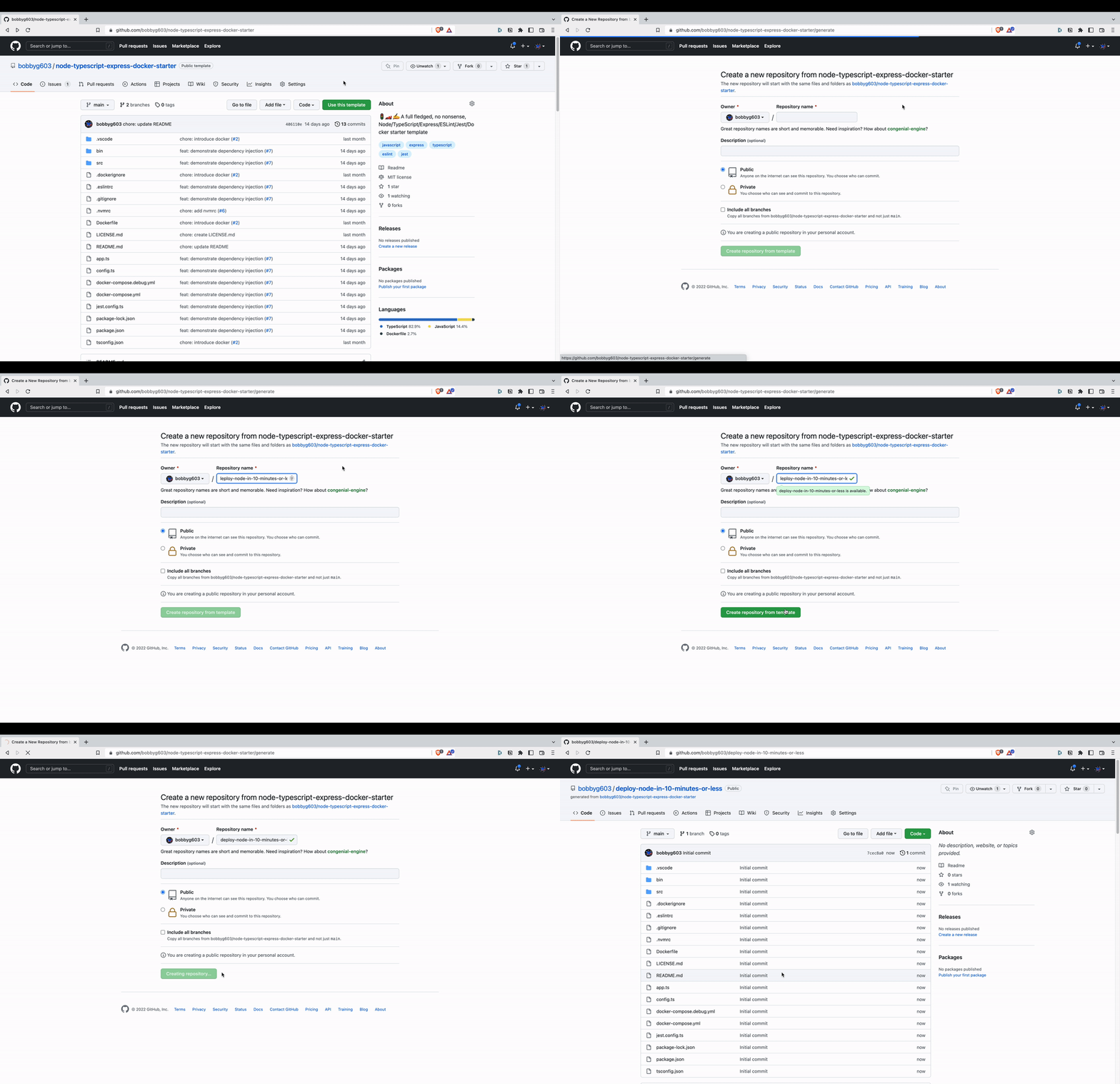
Once you have a working Node.js service in a GitHub repo it’s time to configure the DigitalOcean App Platform! The App Platform “allows developers to publish code directly to DigitalOcean servers without worrying about the underlying infrastructure”.
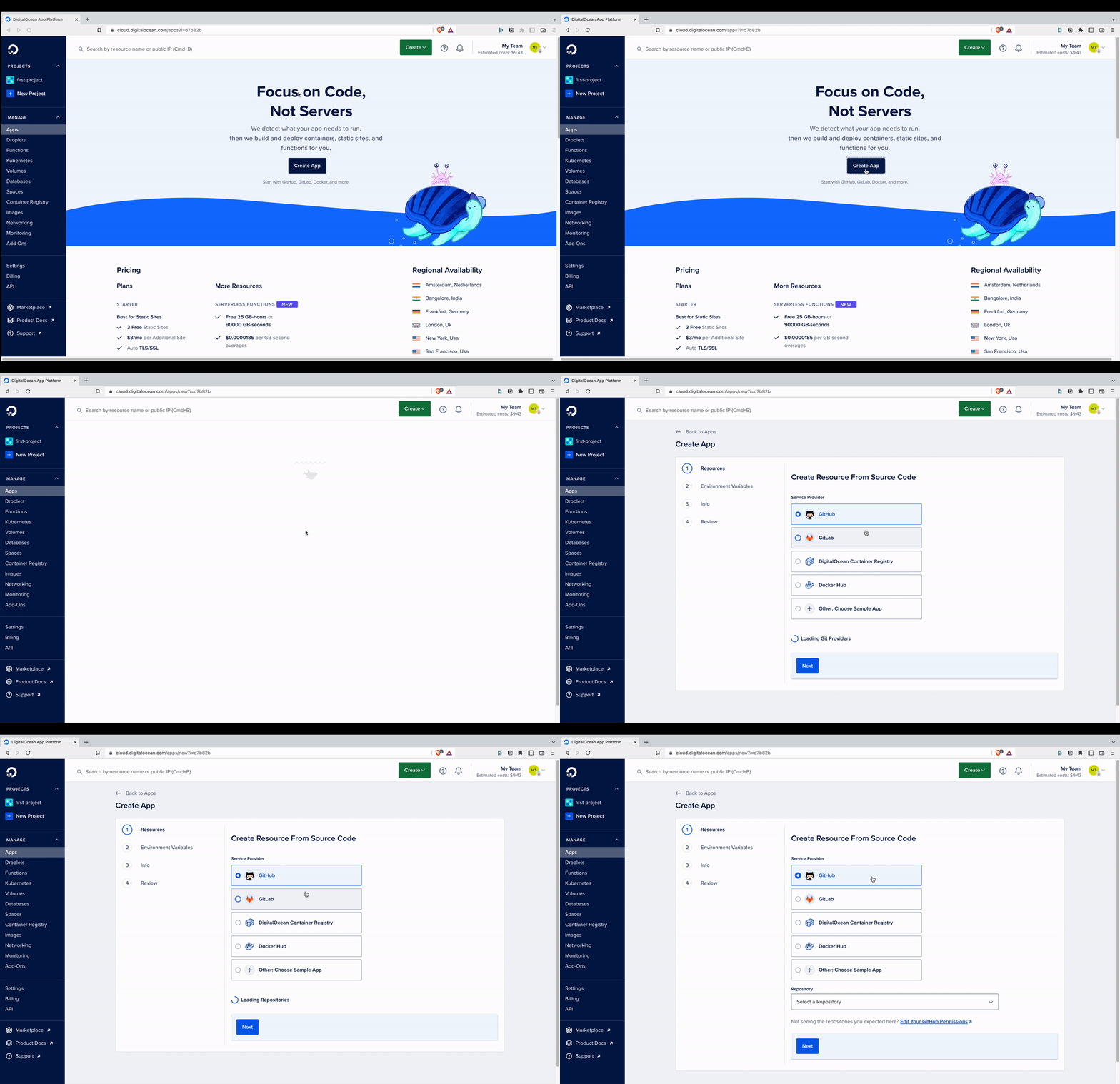
To deploy a new app, login to DigitalOcean, click the Apps tab on the left side of the Dashboard, and click the Create App button.
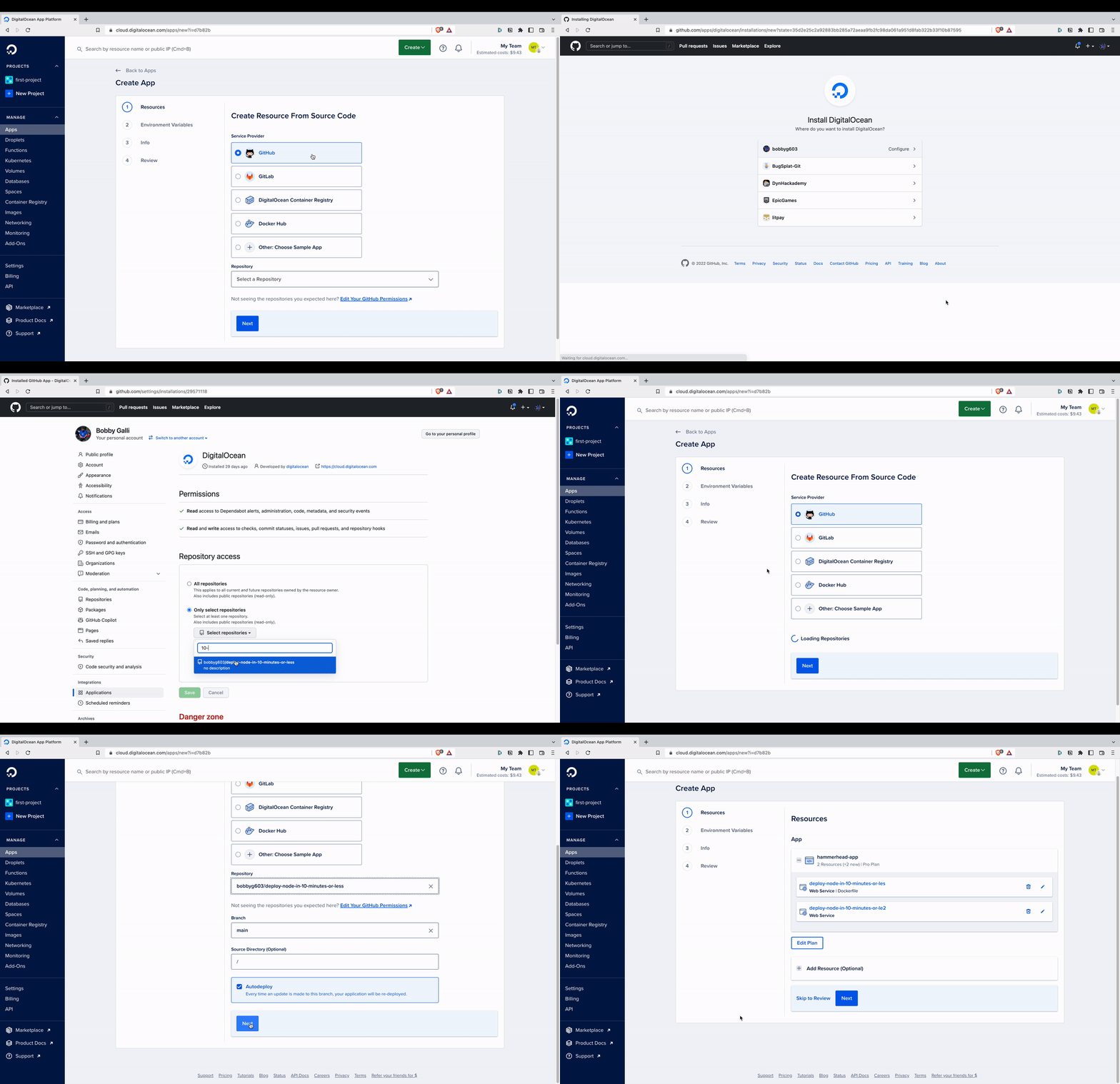
Assuming you’ve signed in with your GitHub account, choose the Github option under the Service Provider section. Next, under the Repository section select the name of your repo. If your repo doesn’t show in the list, click the Edit Your GitHub Permissions link and give DigitalOcean access to your repo.
Once you’ve selected your repo, ensure the Auto Deploy field is checked and click Next.
You’ll be asked to specify the resources your API will use. If you’re using the provided template repo, remove the extra service that was suggested by DigitalOcean due to the development Dockerfile. Click the Edit Plan button and select Basic for now. You can safely click Next until the end.
⚠️ If you don’t have any credits you will get billed for this server.
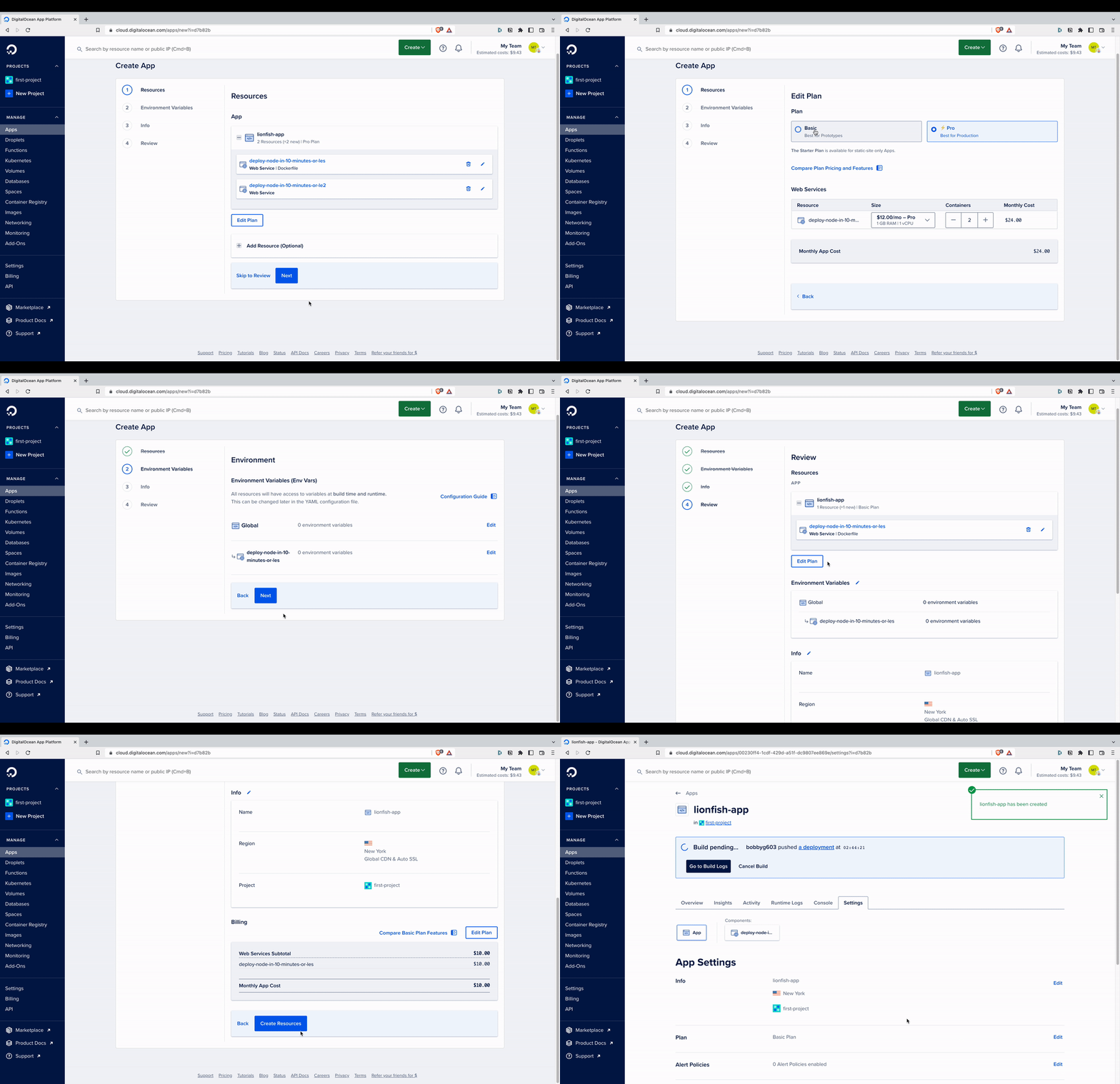
After a few minutes your API will be deployed and will be accessible from anywhere in the world! To verify your API is up and running, click the Live App button.
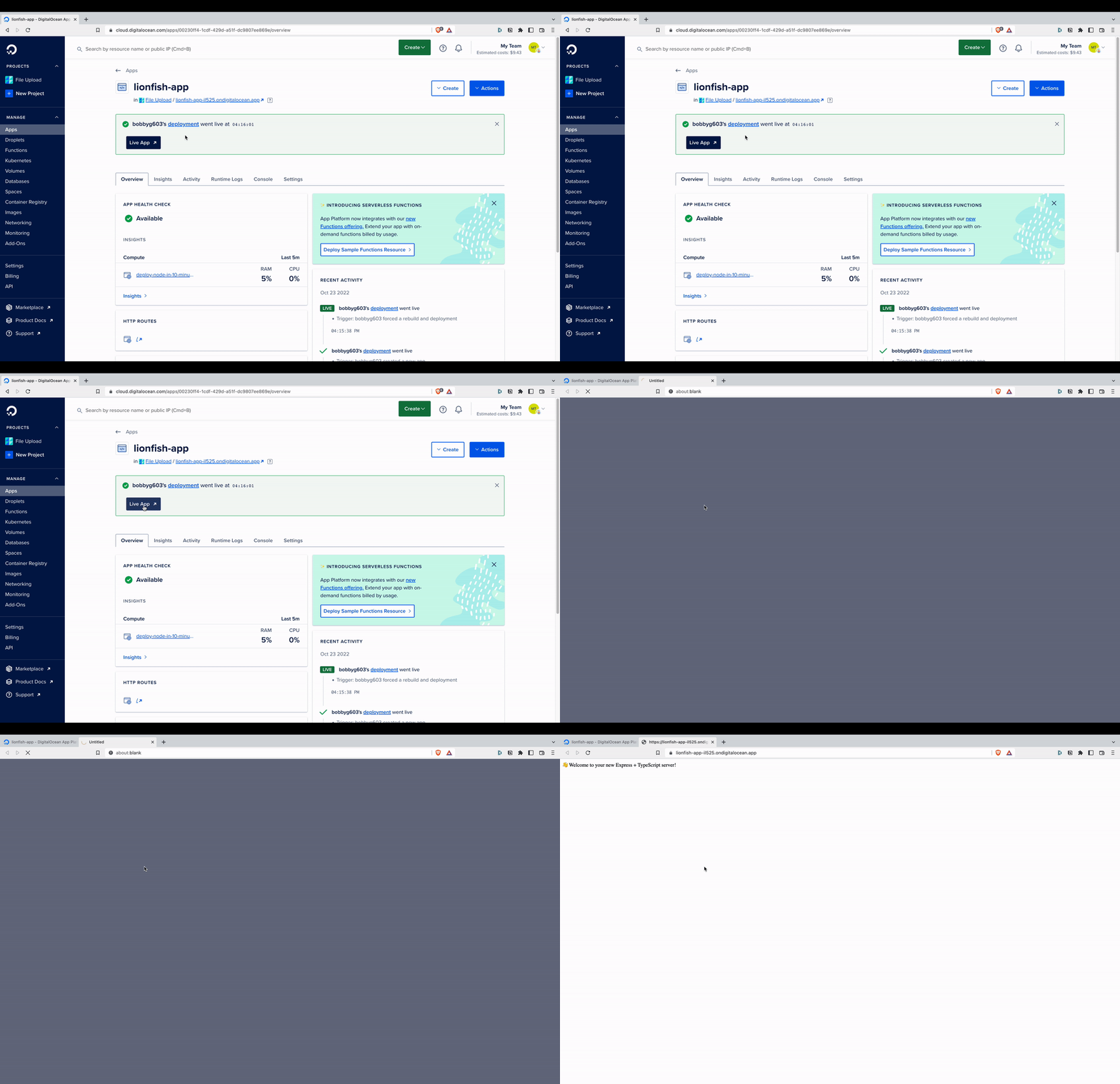
You’ve successfully deployed your API to the cloud! DigitalOcean will also automatically deploy your application when you push to the main branch of your GitHub repo.
Explore the Ocean
Let’s use Postman to interact with the API. Postman is a tool to help you prototype API requests. A sample collection has been created for the template repo and can be forked to your account via the link below.
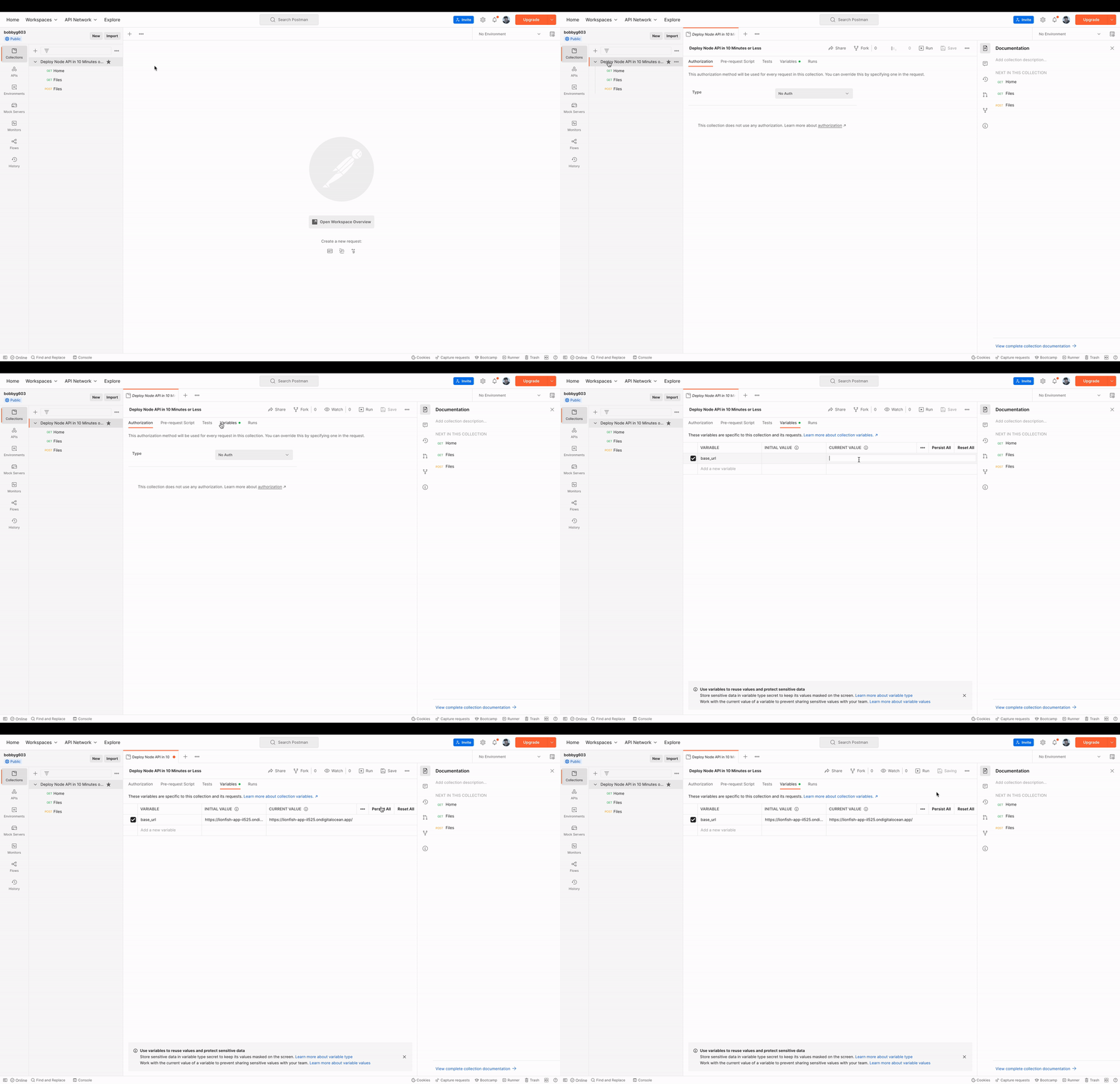
Once you’ve forked the Postman collection, click the collection folder, select the Variables tab, and update base_url with the URL you navigated to in the browser by clicking the Live App button.
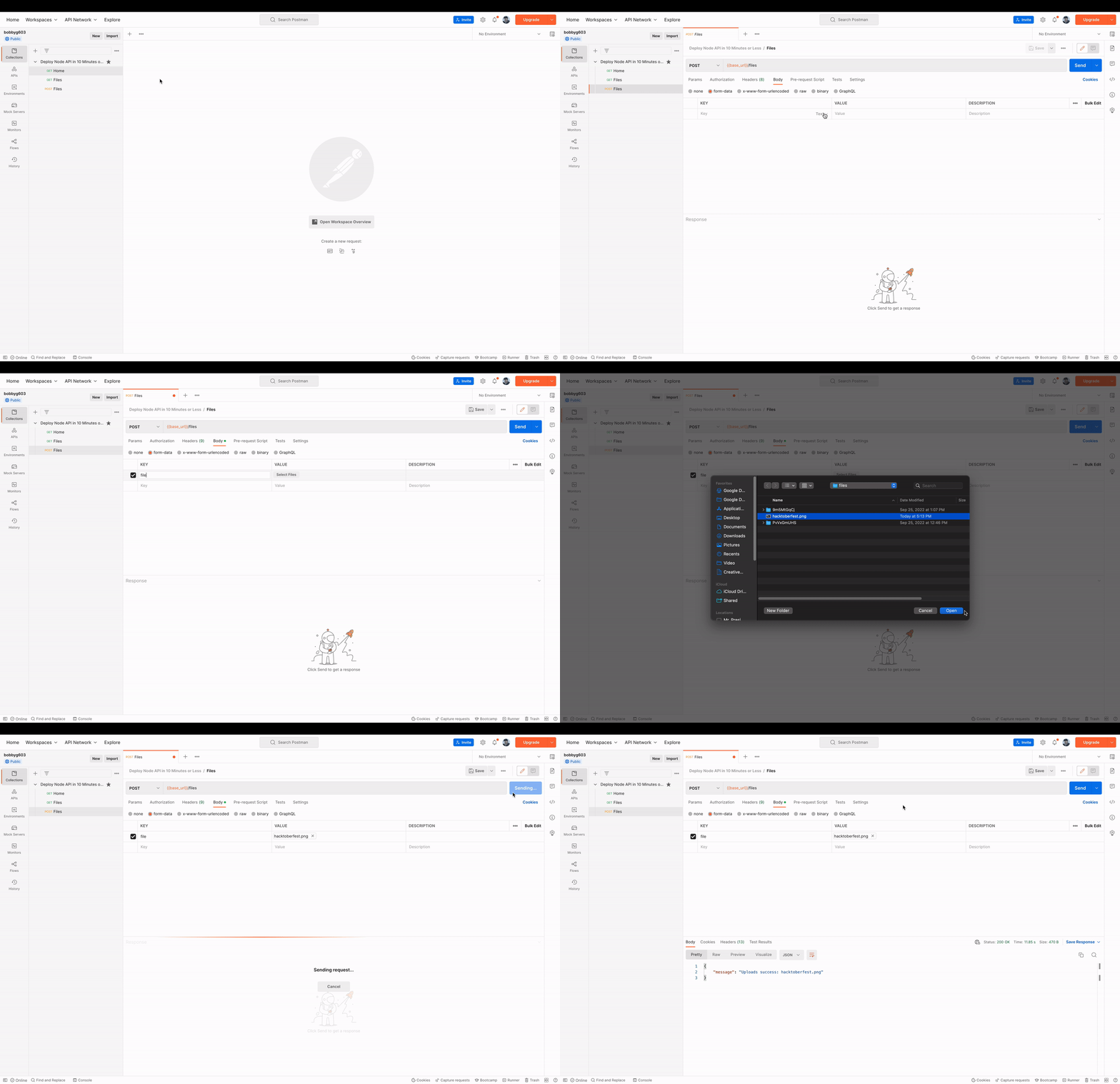
We can now upload a file to the API! In Postman, click the POST Files request in the Deploy Node API in 10 Minutes or Less collection. Select the Body tab, and check the form-data radio button. Under the KEY column enter file and hover over the right side of the column and select File in the dropdown menu. Under the VALUE column click the Select Files button and choose any file on your system that’s under 20 MB. Finally, click Send.
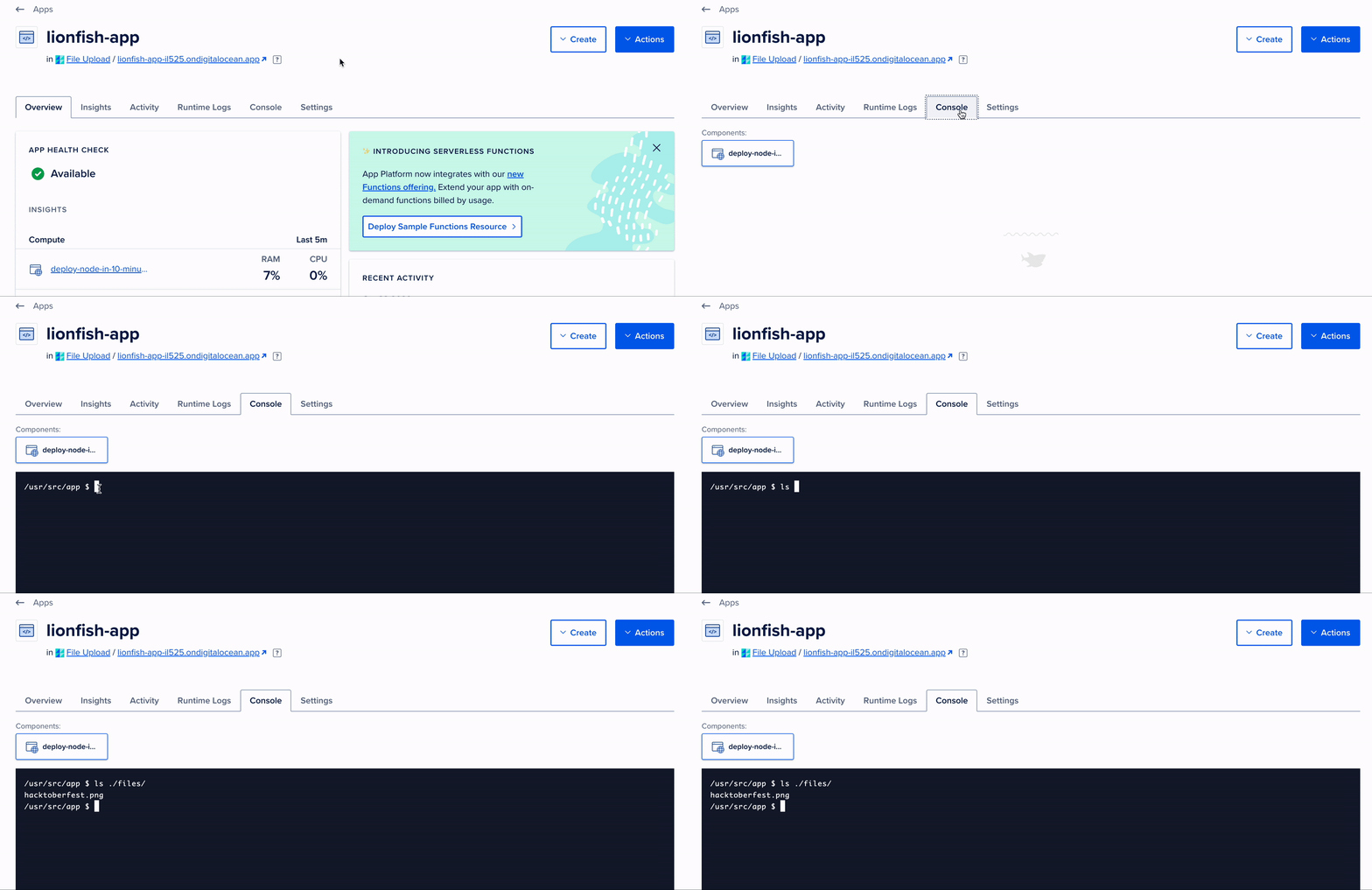
If everything worked correctly, you should be able perform a GET request to the /files endpoint and see your file in the list of uploaded files. You can also open your app’s console in DigitalOcean which gives you a shell you can use to run various terminal commands such as ls.
Awesome! You’ve officially deployed a microservice to the cloud using DigitalOcean’s App Platform. Combine this API with a database, a worker, and a front-end and you’re well on your way to building the world’s next unicorn!
Additional Learning
A robust CI/CD pipeline requires a contributors to review all proposed code changes. In GitHub, these types of pre-merge requirements are called Branch Protection Rules.
Check out GitHub Status Checks and Branch Protection Made Easy to learn how to configure branch protection as part of your CI/CD pipeline.
Additionally, a CI/CD pipeline should require some amount of testing to be run and pass before changes can be merged. In general, applications that contain Unit Tests are better architected, contain less bugs, and are easier to change as they increase in complexity.
To learn how to get started writing unit tests please read Getting Started With Unit Testing Software in 2022.
Thanks for reading!
Want to Connect? If you found the information in this tutorial useful please subscribe on Medium, follow me on X, and/or subscribe to my YouTube channel.